Yeedu Platform
Troubleshooting Guide
Clusters | Jobs | Access Management
Note : Also attached PDF of same
1.Cluster Troubleshooting
1.1. Issue: Cluster goes to Error state due to expired service account JSON
Description: In Google Cloud Platform (GCP) environments, Yeedu clusters rely on a GCP Service Account JSON key to authenticate and perform operations such as provisioning and destroying compute resources. If the service account key expires, is revoked, or deleted, the cluster will fail to authenticate with GCP, causing the cluster to move into an Error state.
Symptoms
- Cluster status shows Error
- Cluster creation or restart fails.
- Jobs and notebooks fail to start and stuck in submitted state
- Logs show authentication or permission-related errors
Root Cause
- The GCP Service Account JSON key used by Yeedu has:
- Reached its expiration date
- Been manually deleted from GCP
- Been rotated without updating in Yeedu
- Been disabled due to security or compliance policies
Common Error Messages
You may see errors like the following in cluster logs:
- Invalid JWT Signature
- The provided credentials are expired
- Error 401: Unauthorized
- Service account key has been disabled or deleted
- Failed to authenticate using provided service account credentials
One such example is as below
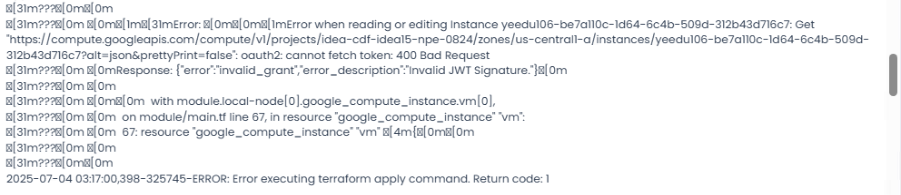
Resolution Steps
- Update Service Account JSON in Yeedu
- Upload or replace the expired JSON key in Yeedu’s GCP configuration
- Ensure the correct service account is mapped to the cluster environment
- Verify Required Permissions
- Confirm the service account has required roles such as:
- Compute Admin
- Storage Admin (or required bucket-level access)
- Service Account User
- Networking permissions (as per Yeedu deployment)
- Restart or Recreate the Cluster
- Restart the affected cluster
- Validate Cluster Health
- Ensure cluster moves to Running state
- Submit a test job or start a notebook to confirm functionality
Additional Notes
- Yeedu does not automatically refresh expired GCP service account keys
- Any key rotation in GCP must be manually updated in Yeedu
- Always validate service account access after security or IAM changes
1.2 Issue: Cluster Creation Fails Due to Incorrect Boot Disk Image on GCP
Description: During cluster creation on GCP, Yeedu provisions VM instances using a predefined boot disk image. If the specified image name, image family, or project is incorrect, unavailable, deprecated, or deleted, GCP fails to resolve the image and cluster creation ends in an Error state.
Symptoms
- Cluster creation fails during Terraform apply
- No VM instances are created in the GCP project
Common Error Messages
Errors similar to the following may appear in logs:
- Error resolving image name
- Could not find image or family
Example: 
Root Cause:
- Boot disk image name is misspelled or incorrect
- Image does not exist in the specified GCP project
- Image or image family has been deleted or deprecated
- Image is located in a different project than configured
- Image permissions are missing for the service account
- Custom image was not copied to the target project
Impact
- Cluster provisioning fails
- Compute resources are not created
- Jobs and notebooks will be stuck in submitted state
- Cluster becomes unusable until configuration is fixed
Resolution Steps
- Verify Boot Disk Image Exists
- Validate Image Configuration in Yeedu
- Check the boot disk image configured for the cluster
- Confirm:
- Image name is correct
- Image family (if used) exists
- Check Image Permissions: Ensure the service account used by Yeedu has access to the image
- Use Supported / Default Image
- If a custom image is unavailable, switch to a supported default image
- Re-apply cluster configuration
- Recreate the Cluster
- Delete the failed cluster
- Recreate it after correcting the image configuration
1.3 Issue: Cluster Creation Fails Due to GCP Quota Limits Exceeded
Description: Cluster creation in Yeedu may fail when Google Cloud resource quotas are exhausted in the selected project or region.
GCP enforces quotas on resources such as:
- vCPUs (CPUs per region)
- VM instances
- Persistent disks
- In-use IP addresses
- GPUs (if applicable)
- Static external IPs
If any required quota is unavailable, GCP blocks resource provisioning, causing cluster creation to fail and move into an Error state.
Symptoms
- Cluster creation fails during provisioning
- Terraform apply fails
- No VM instances are created
- Cluster status transitions to Error
Common Error Messages
You may see errors such as:
- Quota exceeded
- RESOURCE_EXHAUSTED
- Insufficient regional quota
- Requested CPU exceeds quota
- The resource 'projects/.../zones/.../instances' is not available
- Insufficient regional capacity
- Compute Engine API has insufficient quota
- ZONE_RESOURCE_POOL_EXHAUSTED
Root Cause
Cluster creation requires allocation of multiple GCP resources simultaneously.
Failure occurs when:
- Regional vCPU quota is fully consumed
- Maximum number of VM instances is reached
- Persistent disk/local ssd quota is exceeded
- Static IP quota limit is reached
- GPU quota is unavailable (for GPU clusters)
- Regional capacity temporarily unavailable
- Multiple clusters were provisioned without cleanup
- Quotas differ between regions (common misconfiguration)
Impact
- Cluster provisioning fails completely
- Jobs cannot be submitted
- Environment setup blocked for users
- Repeated retries continue to fail until quota is resolved
How to Verify Quota Issue
- Navigate to Cluster → Logs
- Review stderr for quota-related errors
- Look for Quota exceeded or RESOURCE_EXHAUSTED
Resolution Steps
1. Request Quota Increase (Recommended)
2.Temporary work around is to stop the cluster in Error state. Repeat the process until the machine comes to running state.
3. Clean Up Unused Resources to avoid the issue.
Preventive Measures
- Monitor GCP quota usage regularly
- Request sufficient CPU quota before scaling clusters
- Avoid creating multiple large clusters simultaneously
- Document cluster sizing standards
- Set internal limits per environment (Dev / QA / Prod)
1.4. Issue: Invalid or Misconfigured VPC / Subnet
Description
Cluster creation fails due to incorrect VPC or subnet configuration.
Symptoms
- VM provisioning fails
- Network interface creation error
- Cluster stuck in provisioning
Common Error Messages
- Subnet not found
- Invalid network
- Network not authorized
- IP range exhausted
Root Cause
- Wrong subnet name
- Subnet in different region
- No available IP addresses
- Service account lacks network permission
Impact
- Instances not created
- Cluster cannot attach to network
- No internal/external connectivity
Resolution
- Validate subnet exists in selected region
- Check available IP ranges
- Verify network permissions
- Update cluster configuration
1.5 Issue: Scratch disk size too small
Description
Jobs execution might fail due to insufficient scratch disk size
Symptoms
- Job goes to error with Insufficient storage
- Disk-related errors in logs
Common Error Messages
- No space left on device
- Disk full
- Failed to write to disk
Root Cause
- Scratch disk smaller than required size
- Heavy logging filling disk
Impact
- Jobs go to Error state
Resolution
- Increase scratch disk size
- Rerun the job
1.6 Debugging:
When a cluster fails in Yeedu, logs are the primary source to identify the root cause.
Yeedu provides application-level logs (stdout & stderr), while bootstrap logs are available in Google Cloud Stackdriver.
1.6.1. Yeedu Stdout & Stderr Logs
Description:
Yeedu captures stdout and stderr logs during cluster provisioning, startup, and runtime operations. These logs help identify issues related to:
- Cluster configuration
- Terraform execution
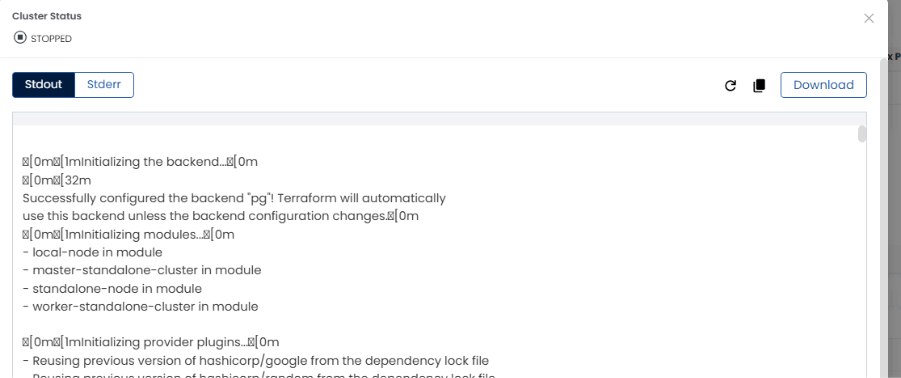
How to check Stdout and Stderr Logs:
Users can find stdout and stderr logs in Yeedu UI:
Yeedu UI → Cluster Page → Click on cluster name → View Logs
At every stage of the cluster lifecycle, Yeedu records stdout and stderr logs and surfaces them in the Cluster page of the Yeedu UI for troubleshooting. Below is snippet from Yeedu UI showing stdout and stderr.
1.6.2: Stackdriver logs:
If a cluster is successfully provisioned and shows Running in the Yeedu UI, but jobs or notebooks remain stuck in the Submitted state, users should review the bootstrap logs available in Google Stackdriver (Cloud Logging) to identify underlying startup issues.
How to Verify Bootstrap Logs in Google Stackdriver (Cloud Logging):
When jobs or notebooks are stuck in Submitted, always inspect the bootstrap logs from GCP to confirm whether node initialization completed successfully.
Step-by-Step: Checking Bootstrap Logs
- Open Google Cloud Console
- Log in to the Google Cloud Console
- Select the same project where the Yeedu cluster is deployed
- Navigate to VM Instances
- Go to Compute Engine → VM instances
- Locate the VM corresponding to the affected Yeedu cluster
- Open the VM Instance Details
- Click on the VM instance name
- This opens the VM instance details page
- Access Logs from the VM Page
- In the VM details page, click on the Logging option
- Redirect to Google Stackdriver (Cloud Logging)
- Clicking Logging automatically redirects to Cloud Logging (Stackdriver)
- Logs are pre-filtered for the selected gce_instance
- Review Bootstrap and Startup Logs
Yeedu bootstrap logs are captured in Logs Explorer under the log group yeedu_bootstrap. Users can apply this filter to access the logs and investigate bootstrap-related errors.
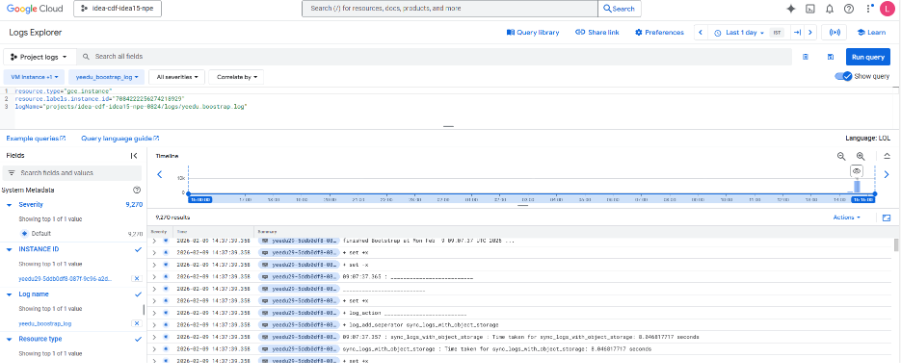
Image showing bootstrap logs from Google cloud stackdriver
1.6.3: Grafana:
Monitoring Cluster Health Using Grafana
Grafana provides real-time visibility into CPU, memory, and system resource usage for Yeedu clusters. If a Yeedu clusters becomes unresponsive, Grafana should be the first place to check for resource exhaustion or abnormal behaviour.
When to Use Grafana Monitoring
Use Grafana when:
- Yeedu machine stops responding
- Cluster appears Running but workloads are slow or stalled
- Jobs or notebooks hang without progressing
- SSH access to the node is slow or unavailable
- Suspected high CPU or memory usage
Step-by-Step: Checking Cluster Resource Usage in Grafana:
Step 1: Open Grafana
- Navigate to the Grafana URL configured for your Yeedu environment
- Log in using your Grafana credentials
Step 2: Locate the Cluster Dashboard
- From the Grafana home page, click Dashboards
- Use the search bar to search for the affected cluster name
- Identify the dashboard corresponding to the problematic Yeedu cluster
Step 3: Open the Cluster Dashboard
- Click on the cluster dashboard
- The dashboard loads metrics collected from the cluster nodes
Step 4: Check CPU Usage
- Locate the CPU usage panels
- Observe:
- Sustained CPU usage near 90–100%
- Sudden spikes that correlate with job submission time
- High CPU usage may indicate:
- Overloaded workloads
- Insufficient cluster sizing
- Runaway processes
Step 5: Check Memory Usage
- Locate the Memory usage panels
- Review:
- Total memory consumption
- Available vs used memory
- Memory close to 100% usage may indicate:
- Out-of-memory conditions
- Improper job configuration
- Memory leaks in long-running workloads
Step 6: Correlate with Time Window
- Adjust the time range (top-right corner)
- Align metrics with:
- When the machine became unresponsive
- Job or notebook submission times
- This helps identify the exact cause and timing of the issue
Step 7: Identify Patterns and Anomalies
Look for:
- Continuous high CPU or memory utilization
- Sharp spikes followed by a drop (possible crashes or restarts)
2.Jobs Troubleshooting:
Job failures in Yeedu can occur due to application-level issues, resource constraints, or missing dependencies. This section outlines common job failure scenarios, how to identify them using logs, and where to monitor job execution status.
Identifying Job Failures Using Logs
Job / Notebook Logs in Yeedu UI
- Navigate to Workspace Tab, click on workspace where your jobs are running, list of all job runs will be available on first tab with name Runs. Click on respective Run Id to check logs.
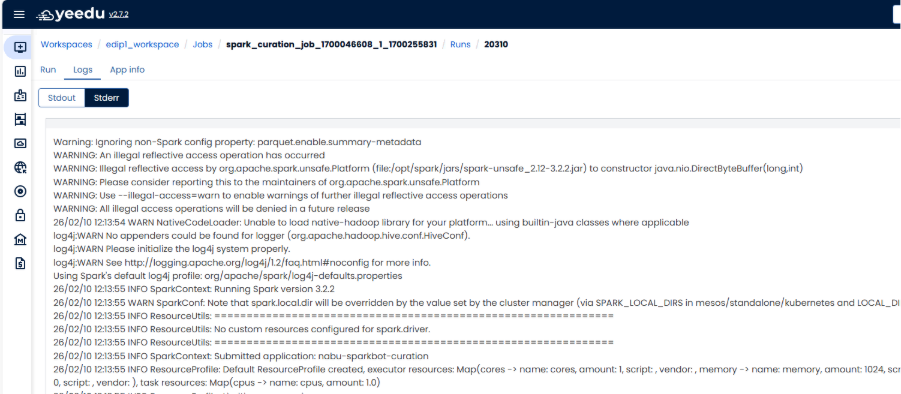
- Review:
- stdout logs for execution flow
- stderr logs for errors and exceptions
- Always start with stderr for root cause analysis
2.1 Out of Memory (OOM) Errors
Description
Jobs may fail when the memory allocated to the driver or executors is insufficient for the workload being processed.
Symptoms
- Job fails during execution
- Job retries multiple times and then fails if retries are configured in Nabu Ingestion pipeline
- Cluster becomes slow or temporarily unresponsive
Common Error Messages
- OutOfMemoryError
- Java heap space
How to Troubleshoot
- Open job stderr logs from the Yeedu UI
- Identify memory-related exceptions
- Check Grafana CPU and memory metrics for spikes
- Review executor and driver memory configuration
Resolution
- Reduce max parallel execution if you are running multiple jobs on a same cluster instance.
For example: If max parallel execution is 3, reduce that to 2 and re-run the job.
Note: Max parallel execution can be edited only when cluster is in destroyed state.
- If you are running single job on the machine, increase the cluster configurations and re-run the job.
For example: If a job is being run on 4 cores 16 GB Machine and if you get OOM, update the machine configurations to 8 cores 32 GB Machine.
2.2 JAR / File Not Found Errors
Description
Jobs fail when required JARs, scripts, or input files are missing, incorrectly referenced, or inaccessible.
Symptoms
- Job fails immediately after submission
- No task execution observed
Common Error Messages
- FileNotFoundException
- No such file or directory
- Error loading application jar
- ClassNotFoundException
How to Troubleshoot
- Check job stderr logs in the Yeedu UI
- Verify file paths used in job configuration
- Confirm files are uploaded or accessible from the cluster
- Validate if file is present in object storage manager, workspace files.
Resolution
- Upload missing JARs or files in object storage manager or workspace files.
- Correct file paths in job configuration
- Ensure proper permissions on storage locations
2.3. Secrets Not Found Errors
Description
Jobs requiring secrets (such as database credentials, API keys, or tokens) fail when secrets are missing or misconfigured.
Symptoms
- Job fails during initialization
- Authentication-related failures
Common Error Messages
- Secret not found
- Access denied
- Unable to retrieve credentials
- Authentication failed
How to Troubleshoot
- Review job stderr logs from Yeedu UI
- Verify secret names referenced in job configuration
- Ensure secrets are created and mapped correctly
- Confirm secret access permissions
Resolution
- Create or update missing secrets
- Correct secret references in job or notebook configuration
- Restart and re-submit the job
2.4. Network or Connectivity Issues
Description
The job cannot connect to external systems such as:
- Databases
- Object storage
- APIs
- Kafka or other streaming systems
Common Errors
- Connection refused
- TimeoutException
- Host unreachable
- DNS resolution failure
Resolution
- Verify VPC/firewall rules
- Check DNS configuration
- Confirm external system availability
- Validate service account/network permissions
3. Monitoring Job Execution Using History Server
Why Use History Server
The History Server provides detailed insights into:
- Job execution stages
- Task-level failures
- Executor and driver behaviour
- Resource utilization per job
How to Monitor
- Open the History Server
- Locate the failed job using:
- Application name / Application Id which can be found on job logs (For v2.7.2)
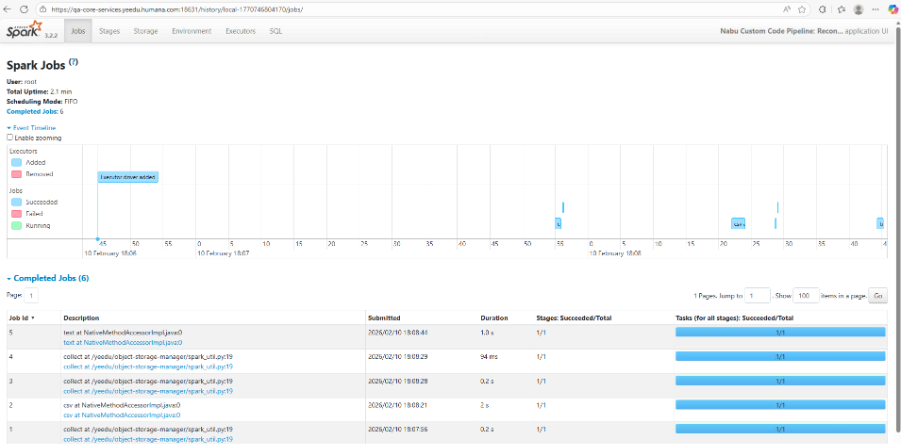
- From v2.9.0, History server info is available in Yeedu job run page itself.
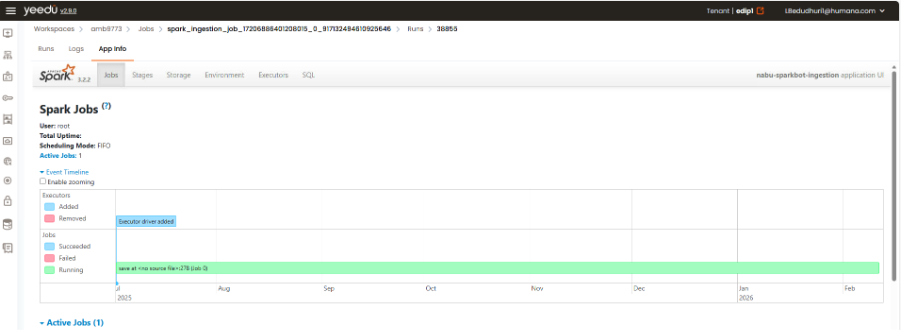
- Review:
- Failed stages and tasks
- Executor logs
- Shuffle and memory usage
When to Use
- Jobs fail without clear errors in Yeedu logs
- Performance-related failures
- Repeated retries or stage failures
- Debugging complex or long-running jobs
Recommended Troubleshooting Flow
- Check job status in Yeedu UI
- Review stderr logs for error messages
- Use History Server for detailed execution analysis
- Monitor Grafana metrics for resource issues
- Apply fixes and re-submit the job
4. Access Management Issues in Yeedu
Access management issues in Yeedu typically arise due to authentication failures, expired credentials, directory synchronization problems, or incorrect role mappings. These issues can prevent users from logging in, accessing clusters, or executing jobs.
4.1. Client Secret Expiry: Unable to Authenticate to Platform
Description
Yeedu integrates with Identity Providers (IdP) such as Azure AD / Azure SSO. If the client secret associated with the application registration expires, users will be unable to authenticate to the platform.
Symptoms
- Users cannot log in to Yeedu
- Redirect loop during login
- Authentication fails after entering credentials
- Admin users also unable to access platform
- API authentication failures
Common Error Messages
- invalid_client
- AADSTS7000222: The provided client secret has expired
- Unauthorized
- Authentication failed
- Token acquisition failed
- invalid_client_secret
Root Cause
- Client secret expiration date reached
- Secret manually deleted
- Secret rotated in but not updated in Yeedu
- Incorrect secret value configured in platform settings
Impact
- Complete login failure for all users
- API integrations stop working
- Platform becomes inaccessible
How to Verify
- Attempt login and note error message
- Check Azure AD:
- Navigate to App Registrations
- Open Yeedu application
- Go to Secrets
- Verify expiration date of client secret
- Confirm configured secret in Yeedu matches the active one
Resolution
- Generate a new client secret
- Copy the secret value immediately (cannot retrieve later)
- Update Yeedu authentication configuration
- Restart authentication service
- Test login with admin account
Preventive Measures
- Monitor secret expiry dates
- Use long-duration secrets where policy allows
- Maintain credential rotation documentation
- Set calendar reminders for renewal
4.2. User Synchronization Issues with AD Groups
Description
Yeedu may synchronize users and groups from Active Directory (AD) or Azure AD.
Failures in synchronization prevent users from receiving proper roles or accessing assigned environments.
Symptoms
- User successfully logs in but has no access
- User not assigned to expected roles
- Group-based permissions not applied
- Newly added users not visible in Yeedu
Common Error Messages
- Group not found
- Failed to fetch group membership
- Insufficient privileges to read directory
- User not part of authorized group
Root Cause
- Incorrect group mapping in Yeedu
- Directory read permissions missing
- Group renamed or deleted in AD
- Sync job failure
- Large group membership exceeding token limits
Impact
- Users cannot access clusters or jobs
- RBAC enforcement fails
How to Verify
- Confirm user exists in AD
- Verify user is part of required AD group
- Check Yeedu role mapping configuration
- Inspect synchronization logs
- Validate directory read permissions of service account
Resolution
- Correct group-to-role mapping in Yeedu
- Re-login user to refresh token
4.3 Permission / Role Mapping Issues in Yeedu
Description
Even when authentication is successful, incorrect role or permission mapping may prevent users from performing expected actions.
Symptoms
- User can log in but:
- Cannot create clusters
- Cannot submit jobs
- Cannot access specific tenants / workspaces
- API calls return 403 Forbidden
Common Error Messages
- Access denied
- Forbidden
- Insufficient privileges
- User does not have permission
Root Cause
- Incorrect RBAC configuration
- Missing role assignment
- Role assigned at wrong scope
- Workspace-level permission not granted
Impact
- Workflow disruption
- Operational delays
- Support escalations
- Misaligned access control
How to Verify
- Navigate to Access Management → Roles
- Confirm user role assignment
- Verify scope
- Compare expected vs assigned permissions
Resolution
- Assign correct role to user
- Validate group-to-role mapping
- Re-apply role configuration
- Ask user to log out and log in again
- Validate environment-level permissions
4.4. Token or Session Expiry Issues
Description
Users may experience sudden logout or API failures due to token expiration or invalid session state.
Symptoms
- Random logout
- API returns 401 Unauthorized
- Notebook sessions disconnect
Root Cause
- Token expiration policy
Resolution
- Re-login user
- Validate token expiration settings
- Adjust session timeout configuration if required
Recommended Access Issue Troubleshooting Flow
- Check if login fails → Likely authentication or client secret issue
- Login succeeds but no access → Check AD group mapping
- Login succeeds but action denied → Check role/permission mapping
- Intermittent failures → Check token/session configuration
Key Takeaway
Most Yeedu access issues fall into one of three categories:
Authentication failures, directory synchronization issues, or incorrect role mappings.
Systematically verifying these layers helps resolve access problems quickly.
5.Troubleshooting Frequently Occurred Issues
5.1 Issue: Jobs Stuck in Submitted State
Issue Description
Nabu submitted jobs to Yeedu, but the jobs are getting stuck in the Submitted state and are not transitioning to the Running state.
This issue can occur when the service account credentials required for creating the virtual machines (VMs) have expired.
Possible Causes
The issue can occur in the following scenarios:
- Case 1: The idea-cdf-idea15-prd-f8c9 service account used for the Yeedu deployment has expired.
- Case 2: The idea-cdf-idea15-prd-f8c9 service account configured in the EDIP1 tenant has expired.
- Case 3: The idea-cdf-edw-prd-0c89 service account configured in the IDEA40 tenant has expired.
- Case 4: Clusters going to error state due to insufficient resources available in the configured region
- Note: In case 1 and case 2 we are using same credentials.
Impact
When the required service account credentials expire, Yeedu is unable to successfully create the virtual machines required to execute the submitted jobs.
As a result:
- Nabu submits the job to Yeedu.
- Yeedu attempts to create the required virtual machine.
- VM creation fails because the service account credentials have expired.
- The VM transitions to an Error state.
- Since the required VM is not successfully created and available for job execution, the Yeedu job remains stuck in the Submitted state.
- The job therefore does not transition to the Running state.
Resolution
Verify the status and validity of the service account credentials associated with the Yeedu deployment and the respective tenants.
Depending on the affected environment, verify and renew the credentials for:
- idea-cdf-idea15-prd-f8c9 – Yeedu deployment
- idea-cdf-idea15-prd-f8c9 – EDIP1 tenant
- idea-cdf-edw-prd-0c89 – IDEA40 tenant
After the credentials are renewed or updated, verify that VM creation is successful and that newly submitted jobs transition from Submitted → Running as expected.
Please refer to the attached document for refreshing credentials in Yeedu orchestration Engine, EDIP1 and Idea40 tenants. This guide helps you perform all required activities.
<Attach the service account rotation document and patch document required>
Note: Please remove universal_domain key in the service account json before updating credentials in Yeedu UI or while updating system credentials.
For case4, please refer to 1.3 in cluster troubleshooting.
Validation
After resolving the credential issue, perform the following validation:
- Confirm that the service account credentials are valid and have not expired.
- Submit a test job from Nabu.
- Verify that the required VM is created successfully.
- Confirm that the VM does not transition to the Error state.
- Verify that the Yeedu job transitions from Submitted to Running.
- Confirm that the job completes successfully.
5.2 Issue: Custom Code Jobs are failing
Issue Description
Custom Code jobs submitted to Yeedu are transitioning to the Error state, while other types of jobs continue to execute successfully.
Since the issue is isolated to Custom Code jobs, the problem is likely related to components that are specific to the Custom Code execution environment.
There are two primary cases that can cause Custom Code jobs to fail and can be identified from the job logs:
Path to job logs:
Edip1 tenant -> workspaces -> edip1_team_workspace -> Run ID
<Insert Runs page>
- The service account JSON used for Vault authentication in custom code is invalid, incorrect, or outdated.
- One or more Python (pip) packages required by the Custom Code job cannot be installed successfully through the Yeedu initialization script.
Possible Causes
Case 1: Service Account JSON Used for Vault Authentication Is Failing
Description
Custom Code jobs require access to secrets stored in Vault during the initialization or execution process.
The Custom Code cluster uses a service account JSON to authenticate with Vault. If the configured service account JSON is incorrect, expired, invalid, or does not correspond to the expected service account, Vault authentication will fail.
<Add URL in Humana>
Below picture shows the svc json being used for vault authentication. Get the service account json, rename the json same as shown in below image and overwrite the existing file.
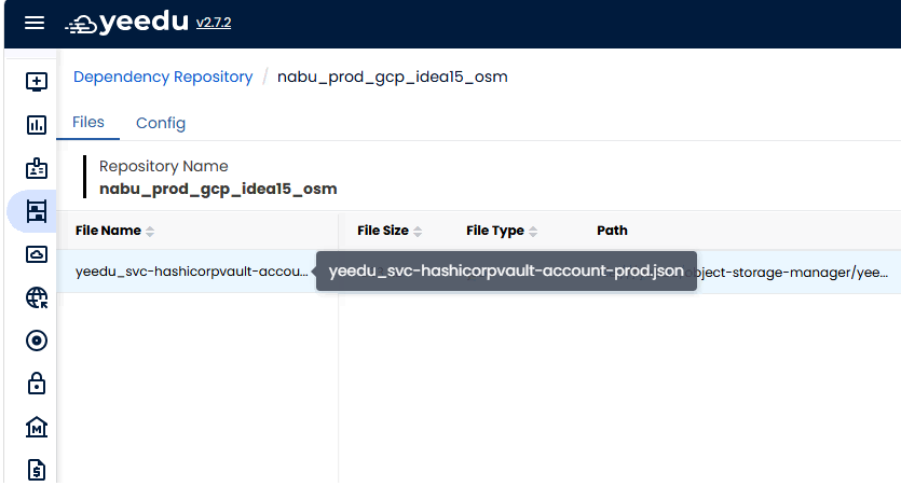
When Vault authentication in the custom code fails, the initialization process cannot retrieve the required secrets. As a result, the Custom Code job transitions to the Error state.
Note: The service account JSON needs to be checked in the object storage manager attached to Custom Code cluster: edip1_n1_standard_4 in the EDIP1 tenant.
Typical Flow
The failure occurs approximately as follows:
Custom Code Job Submitted to the cluster
↓
edip1_n1_standard_4 Cluster Initialization Starts
↓
Job tries to authenticate to vault using svc json present in bucket
↓
Vault Authentication Fails
↓
Required Secrets Cannot Be Retrieved
↓
Job Moves to ERROR
Resolution
- Identify the correct service account associated with the Custom Code environment.
- Fetch the correct and currently valid service account JSON.
- Access the Object Storage Manager configuration associated with the Custom Code cluster.
- Locate the configuration for:
- Tenant: EDIP1
- Cluster: edip1_n1_standard_4
- Replace the existing/incorrect service account JSON with the correct JSON.
- Save/update the configuration.
- Submit a new Custom Code job and verify that Vault authentication succeeds in the job logs.
- Confirm that the Custom Code environment initializes successfully and the job proceeds to execution.
Important Validation
After updating the JSON, check the initialization logs for successful Vault authentication in the job logs.
The main thing to verify is that there is no longer an authentication failure and that the required secrets are successfully retrieved.
Case 2: Pip Package Installation Fails During Yeedu Initialization
Description
Custom Code jobs may require specific Python packages and package versions.
During the creation and initialization of the edip1_n1_standard_4, Yeedu uses an initialization script to install the required pip packages.
If a requested package version is no longer available, is incompatible with the Python/runtime version, has dependency conflicts, or cannot be downloaded from the configured package repository, the pip installation step can fail.
When the initialization script fails, the Custom Code environment is not successfully prepared, and the job subsequently transitions to the Error state.
Typical Flow
Custom Code Job Submitted
↓
edip1_n1_standard_4 Created
↓
Yeedu Initialization Script Starts
↓
Required pip Packages Are Installed
↓
Requested Package Version Is Not Available/
Compatible
↓
pip Installation Fails
↓
Initialization Script Fails
↓
Job Moves to ERROR
Common Reasons for Pip Installation Failure
Some common reasons include:
- The requested package version is not available in JFrog.
- The package version has been removed or is no longer supported.
- The requested version is incompatible with the Python version used by the Custom Code cluster.
- A package has dependencies that conflict with already-installed packages.
- A specific package version requires a different version of another dependency.
- The package exists in JFrog, but the required build/version is unavailable for the current platform.
- The package version specified in the Custom Code job configuration is outdated.
Resolution for Pip Package Installation Failure
When pip installation fails, first identify the exact package and version that caused the failure.
Step 1: Check the Initialization Logs
Review the Yeedu initialization script logs and identify:
- Package name
- Requested package version
- Exact pip error
- Dependency causing the failure, if applicable
For example:
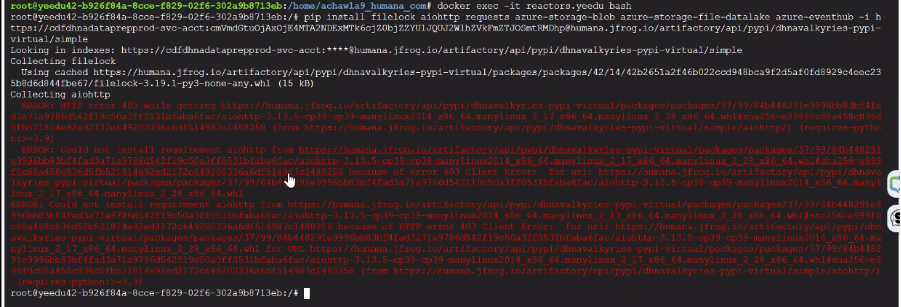
ERROR: Could not find a version that satisfies the requirement aiohttp==3.13.3
or:
ERROR: No matching distribution found for aiohttp==3.13.3
This indicates that the requested package/version cannot be installed from the configured repository.
Step 2: Verify the Package in JFrog
Check JFrog for the availability of the requested package and version.
For example:
Requested:
aiohttp==3.13.3
Verify whether 3.13.3 is available in the configured JFrog repository.
Also check whether other compatible versions are available, such as:
3.13.2
3.13.1
3.12.x
Step 3: Select a Compatible Version
If the requested version is unavailable, determine whether the package should be:
- Upgraded to an available compatible version, or
- Downgraded to an available compatible version.
The selected version should be compatible with:
- The Python version of the Custom Code environment
- Other dependencies used by the application
- The Custom Code framework/runtime
- The available package versions in JFrog
Step 4: Update the Package Version
Update the package version specified in the Custom Code job configuration/init script.
For example, if the current configuration contains:
aiohttp==3.13.3
and 3.13.3 is unavailable, update/ downgrade it to an available compatible version:
package-name==3.13.4
or, if required:
package-name==3.13.2
Step 5: Test the Custom Code Job
After updating the package version:
- Submit a new Custom Code job.
- Monitor the initialization process.
- Verify that all pip packages are installed successfully.
- Confirm that the Custom Code environment starts successfully.
- Verify that the job transitions out of the Submitted state and begins execution.
- Confirm that the job completes successfully.
Resolution Summary
Case | Root Cause | Resolution |
Case 1 – Vault Authentication | Incorrect, invalid, expired, or outdated service account JSON | Fetch the correct service account JSON and update it in the Object Storage Manager associated with the Custom Code cluster edip1_n1_standard_4 in the EDIP1 tenant |
Case 2 – Pip Installation | Required pip package/version cannot be installed during Yeedu initialization | Check the package availability in JFrog, verify compatibility, and upgrade or downgrade the package version accordingly |
Key Point
Because the issue affects only Custom Code jobs, troubleshooting should initially focus on the Custom Code cluster initialization process rather than the general Yeedu job submission mechanism.
The two most important areas to verify are:
- Vault authentication → Service account JSON
- Vault authentication succeeds but job fails -> pip package installation
A successful Custom Code job requires both of these initialization steps to complete successfully before the actual user code can execute.
5.3 Issue: Unable to view logs for jobs in Yeedu
Issue Description
In Yeedu, STDOUT and STDERR logs for jobs remained stuck on Loading, preventing troubleshooting of failed Nabu jobs.
This can happen in two cases
- Case 1: The idea-cdf-idea15-prd-f8c9 service account used for the Yeedu deployment has expired.
- Case 2: The universal_domain key was not removed from idea-cdf-idea15-prd-f8c9's service_account.json while doing a production refresh.
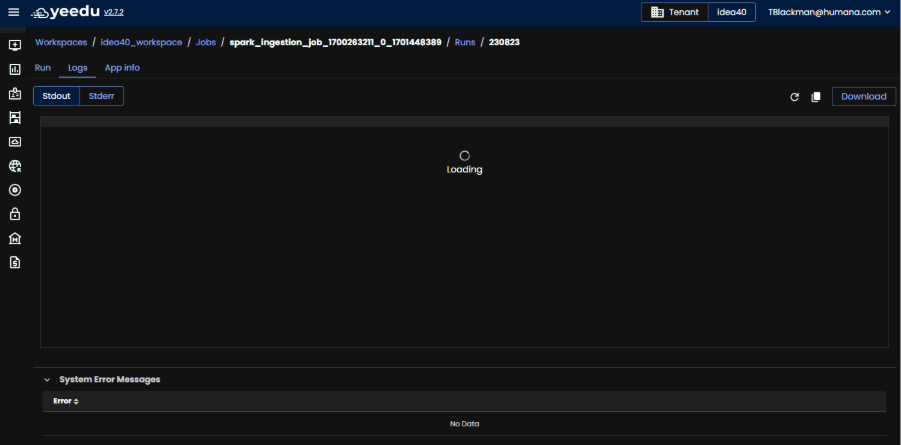
Possible Causes
Case 1: Expired Service Account JSON
We use the system credentials idea-cdf-idea15-prd-f8c9 to access and retrieve logs from object storage. If these credentials expire, the Yeedu REST API will be unable to authenticate with object storage, resulting in log retrieval failures and the logs remaining stuck on Loading.
Case 2: universal_domain Key Not Removed in service account json used while deploying
After a production refresh, the universal_domain key may remain in the service_account.json file when it should have been removed. In Yeedu v2.7.2, this incorrect configuration prevents the Yeedu REST API from fetching job logs from object storage. As a result, users see “Loading” continuously instead of the actual STDOUT and STDERR logs. To resolve the issue, remove the universal_domain key and restart the Yeedu core services.
Impact
- STDOUT and STDERR logs are unavailable through the Yeedu UI.
- Troubleshooting Nabu ingestion failures is delayed.
Resolution
Case 1: Expired Service Account JSON
- Verify the service account credential's validity and expiration status.
- ssh into production machine <attach prod machine link here>
- Run following command
cd /Core-services-Formation
- Locate the relevant service_account.json configuration by running following commands
cd /Core-services-Formation
cat yeedu-system-config.properties | grep –i system
- Find the YEEDU_SYSTEM_CLOUD_CREDENTIALS_FILE_PATH and YEEDU_SYSTEM_DOCKER_REGISTRY_CREDENTIALS_FILE_PATH
- Replace the updated credentials through the approved process in above files paths.
- Restart the relevant core services using following command.
./yeedu-Core-Services.sh restart
- Verify that object storage access and log retrieval work successfully.
- Follow the document attached for more understanding and restarting services
<Attach the service account rotation document and patch document required>
Case 2: universal_domain Key not removed during monthly refresh
- Navigate to the Core-services-formation directory.
- Locate the relevant service_account.json configuration by running following commands
cd /Core-services-Formation
cat yeedu-system-config.properties | grep –i system
- Find the YEEDU_SYSTEM_CLOUD_CREDENTIALS_FILE_PATH and YEEDU_SYSTEM_DOCKER_REGISTRY_CREDENTIALS_FILE_PATH
- Open both the files and remove the universal_domain key while preserving all other required fields.
- Validate the JSON configuration.
- Restart the core services:
./yeedu-Core-Services.sh restart
- Wait for the services to become healthy.
Note: Perform production configuration changes and service restarts only with the appropriate authorization and change approval.
Validation
For both cases:
- Confirm that the service account configuration is correct.
- Verify that core services are healthy.
- Open an affected job and check STDOUT and STDERR.
- Confirm that logs load successfully for multiple jobs.
- Check restful Api container logs for authentication, authorization, or object-storage errors if the issue persists.
Expected result: The Yeedu log viewer displays available STDOUT and STDERR content instead of remaining stuck on Loading.
5.4 Issue: Yeedu UI not responding / Unable to login to Yeedu
Issue Description
Users were unable to log in to the Yeedu UI because the Azure SSO Service Principal (SPN) client secret had expired. Although NABU jobs continued to execute and complete successfully, users could not access Yeedu to view job details and logs.
Possible Causes
- Expired Azure SPN client secret: The client secret configured for Azure SSO authentication expired, preventing users from logging in.
- Incorrect client secret: An invalid or outdated secret was configured in Yeedu.
- Configuration not updated: The renewed secret was not updated in the Yeedu connection properties.
- Services not restarted: Yeedu services may continue using the previous configuration until the updated settings are loaded.
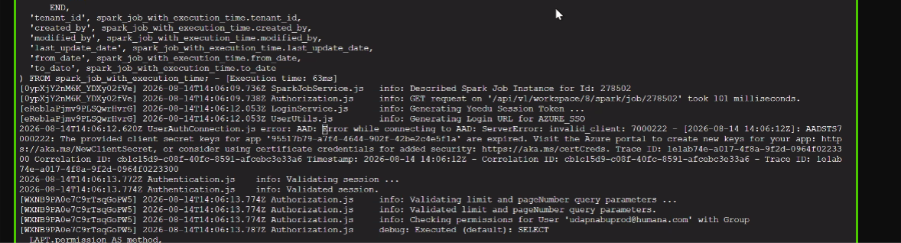
Below screenshot is the log from restful api container showing proof that Azure Client secret expired
How to Verify Azure SSO Client Secret Expiration
- SSH into the Yeedu machine using the appropriate Humana machine URL (<Machine_URL>).
- Switch to the root user and identify the REST API container by executing the following commands:
sudo su
docker ps | grep -i rest
- Check the REST API container logs using the container name identified in the previous step:
docker logs -f <restful_api_container_name>
- Verify the login request and error messages in the logs. If the login request fails with an Azure authentication error indicating that the client secret has expired, it confirms that the Azure SSO client secret needs to be renewed.
Note: Confirm the exact error message before concluding that the client secret has expired, as other Azure SSO configuration issues can also cause login failures.
Impact
- Users could not log in to the Yeedu UI.
- Users were unable to access job details and logs through Yeedu.
- Troubleshooting and monitoring of NABU jobs through the UI were affected.
- NABU job execution was not directly impacted, jobs continued running and completing successfully.
Resolution
- Verify that the Azure SSO SPN client secret has expired.
- Obtain new client secret from appropriate team, following the organization's security procedures.
- ssh into production machine <attach prod machine link here>
- Run following command
cd /Core-services-Formation
- Update the secret in the yeedu-connection.properties file present in Core-services-Formation folder with the correct value.
- Verify the configuration and ensure the updated secret corresponds to the correct Azure application and tenant.
- Restart the Yeedu services to load the updated configuration:
./yeedu-Core-Services.sh restart
- Wait for the services to restart successfully and test Azure SSO login.
Note: Use the approved production change process and store the client secret securely. Never include secret values in troubleshooting documents or logs.
Validation
- Confirm that Yeedu services are healthy after restarting.
- Run docker ps -a and check with all required containers are up and running
- Verify that users can successfully log in through Azure SSO.
- Confirm that the Yeedu UI loads correctly.
- Open a NABU job and verify that job details and logs are accessible.
- Confirm that no further Azure SSO authentication errors are reported.
Outcome: The expired Azure client secret was replaced in yeedu-connection.properties, and Yeedu services were restarted. Users were able to log in successfully after the restart.
Key Takeaway
If NABU jobs are running successfully but users cannot access the Yeedu UI, check the Azure SSO configuration and SPN client secret expiration first. An expired client secret can prevent user authentication without affecting the underlying job execution.
Was this article helpful?
That’s Great!
Thank you for your feedback
Sorry! We couldn't be helpful
Thank you for your feedback
Feedback sent
We appreciate your effort and will try to fix the article